¶ CTOs/App Sanitization Module
The sanitization of CTOs is the process of validating and organizing the port information of an Optical Termination Box (CTO), ensuring that each port is correctly identified, linked, and has an updated status in the system.
This process aims to ensure the reliability of network data, preventing usage conflicts, incorrectly occupied ports, and subscriber provisioning failures.
Through the Int6 – Provisioning app, technicians can perform sanitization directly in the field using resources such as geolocation, guided ONU auto-detection, and manual subscriber linking.
Each port can be classified according to its status (in use, available, reserved, damaged, blocked, among others), allowing for quick and accurate visual control.
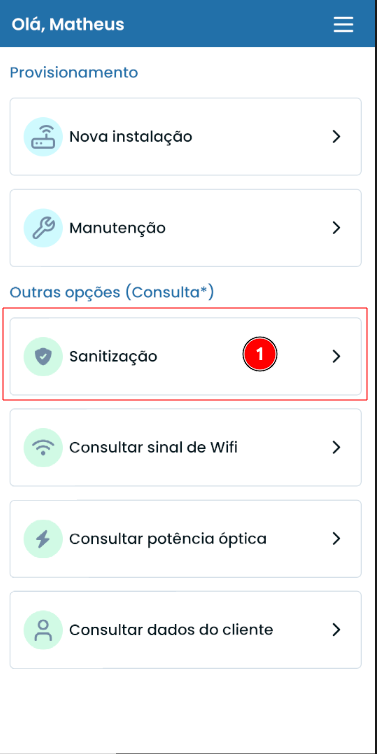
To access the module, choose the Sanitization option from the app menu.
¶ CTO Selection Method
These are the screens displayed according to the search method chosen to locate a CTO in the app:
1. Locate by list:
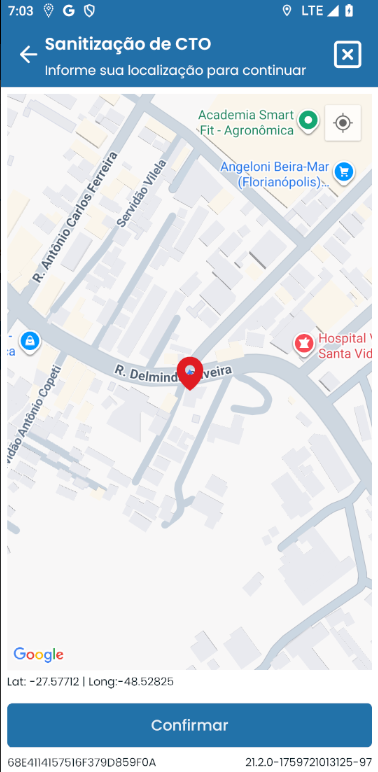
The app uses the technician’s location reference point (via GPS) to identify the nearest CTOs.
After confirming the position on the map, a list ordered by distance is displayed, showing the available CTOs nearby.
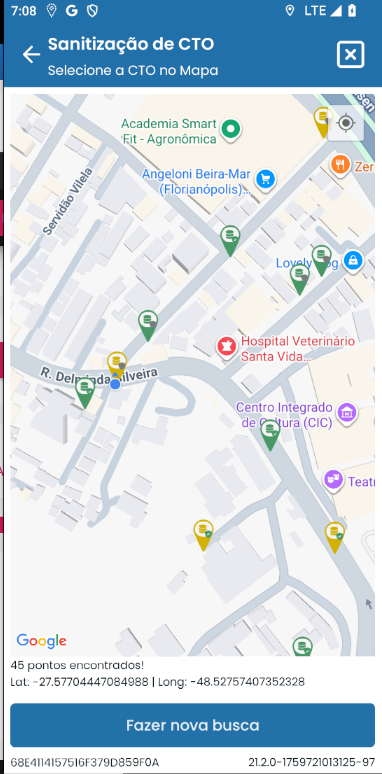
2. Locate by map:
Displays an interactive map showing CTOs near the technician’s current location.
This mode allows for a geographical view of CTOs, making it easier to identify and navigate between them.
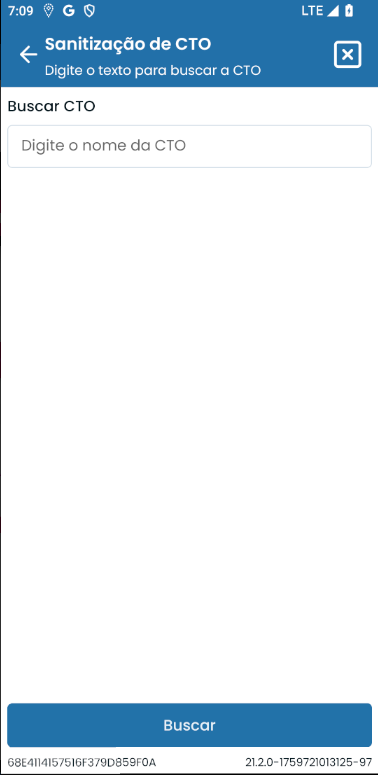
3. Locate by name:
Allows searching directly by the CTO name — by typing the full name or part of it.
After confirming the search, the system returns a list of matching CTOs for immediate selection.
¶ Symbols and Color Coding
When a CTO is displayed, it shows information using symbols and colors.
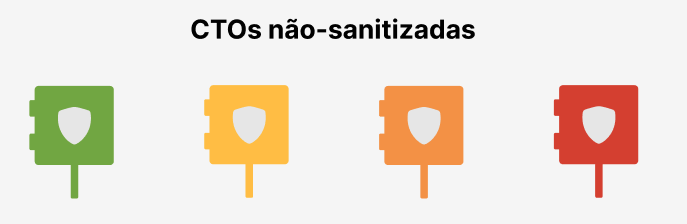
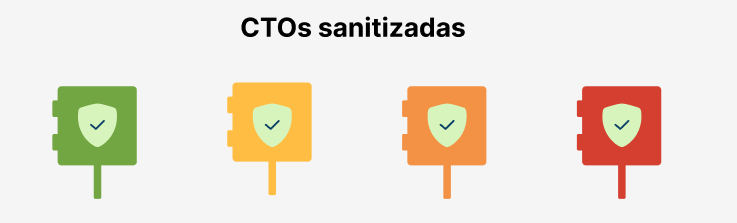
| Color | Occupancy Rate | Description |
|---|---|---|
| Green | < 60% | Low occupancy |
| Yellow | ≤ 80% | Moderate occupancy |
| Orange | < 100% | High occupancy |
| Red | = 100% | CTO fully occupied or missing information |
¶ 🧩 Definition of Sanitized CTO and Non-Sanitized CTO
Non-sanitized CTOs:
Represent boxes that are not yet verified or have inconsistent information about their ports.
Some ports may have undefined or incorrect statuses, requiring the technician to perform the sanitization process in the app.
Sanitized CTOs:
These are boxes that have undergone full verification and validation.
All ports have correct statuses (in use, available, reserved, etc.), and the links with ONUs and subscribers have been confirmed.
These CTOs are considered operationally reliable and are indicated in the app with a green shield with a check mark icon.
¶ Port Selection
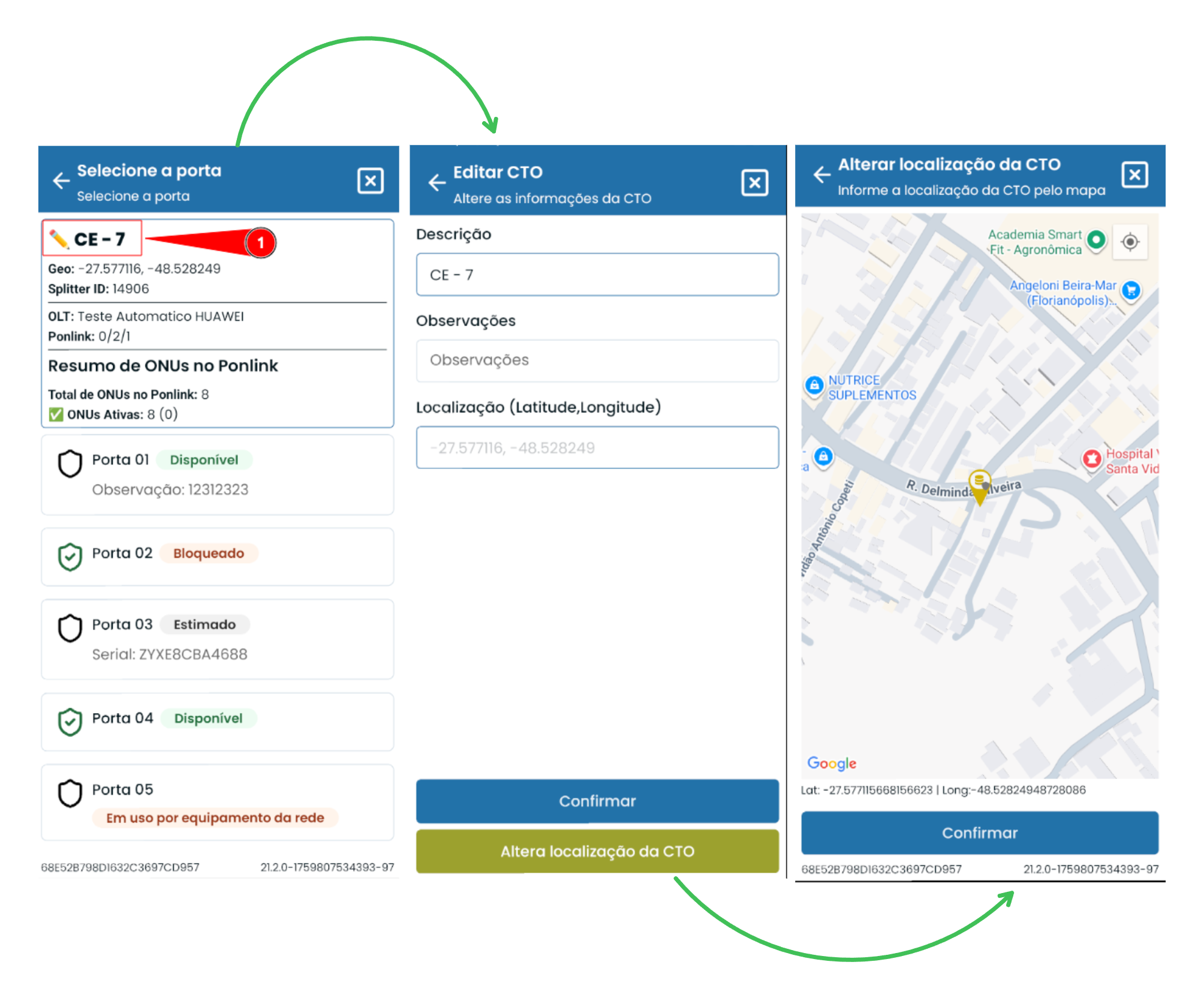
After locating and confirming the desired CTO, the next step is to select the port to work on.
The CTO selection screen contains the following information:
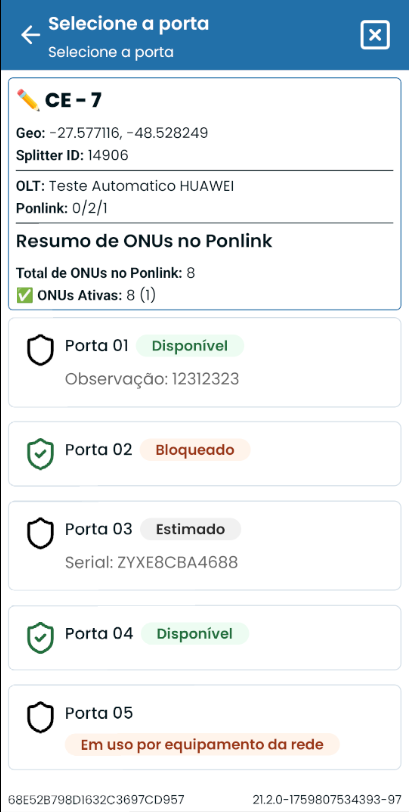
 Not Sanitized: Port has not yet been sanitized.
 Sanitized: Port has already been sanitized.
Estimated Port filled automatically by the estimation routine.
Available : Port available for use.
Blocked, Damaged, Unknown : Port with an exception tag; serves as an alert regarding usage.
In use by network equipment: Port already in use by a network element and must be managed/modified, if necessary, through the mapping system.
¶ Edit CTO Information
At the top of the screen, there is an edit icon represented by a pencil.
By clicking it, it is possible to edit some CTO information, such as location (positioning), name, and notes.
¶ Port Sanitization Actions
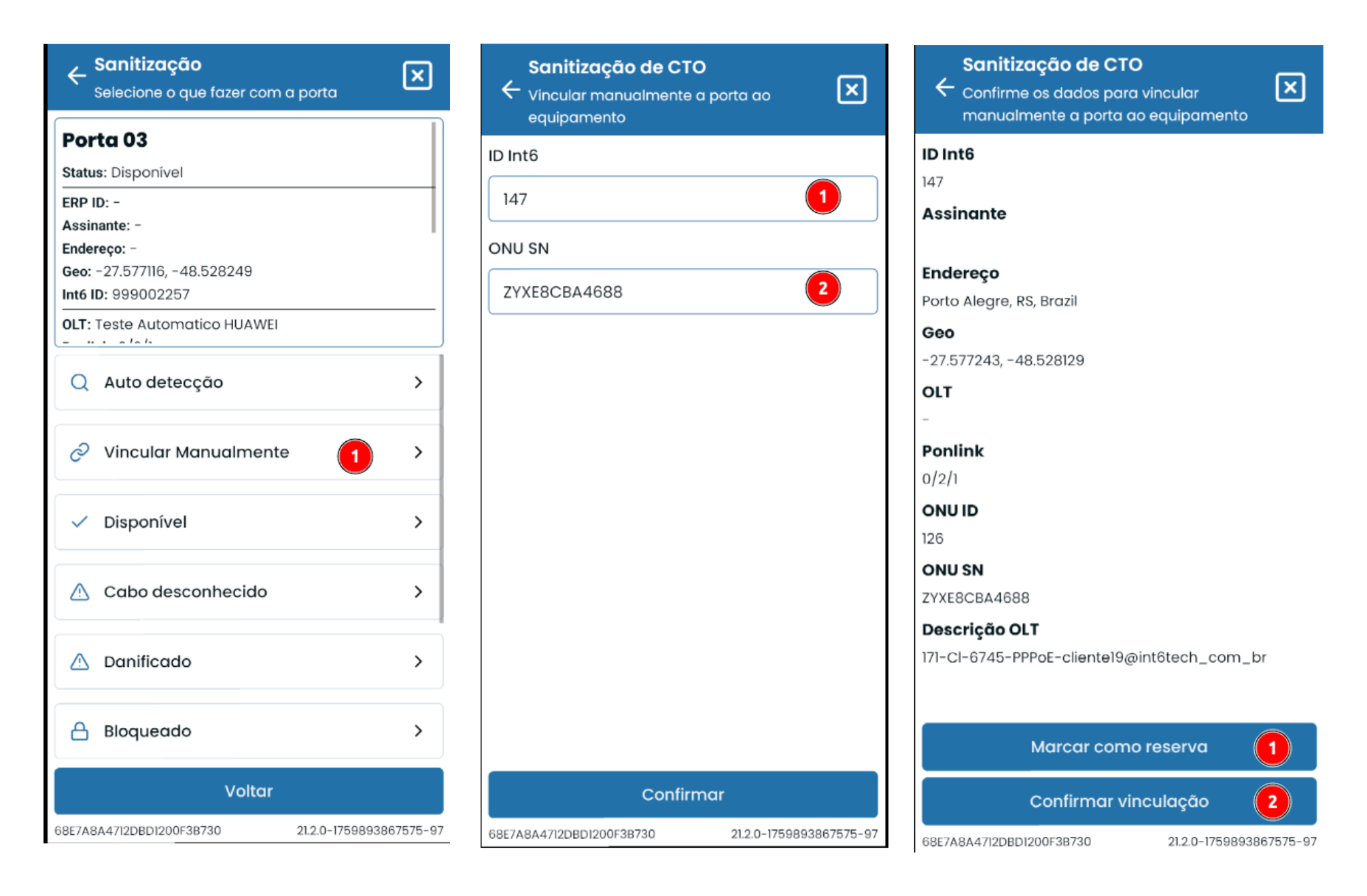
When selecting the desired port, a screen with available actions will be displayed.
On this screen, the following options can be chosen:
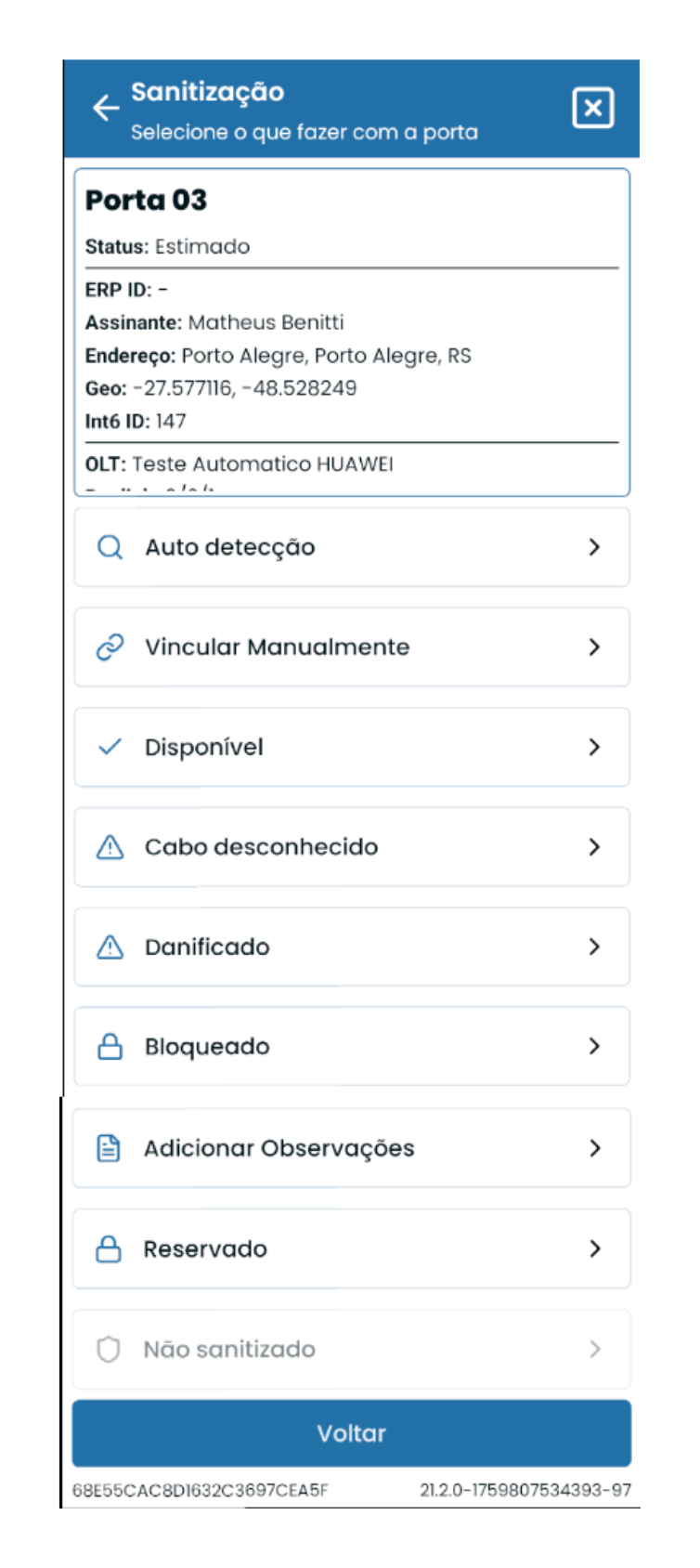
1. Auto-detection – Process performed by the field technician to identify the equipment.
2. Link manually – Allows manually linking a client to the port.
3. Available – Marks the port as available.
4. Unknown cable – Exception tag; marks the port as Unknown Cable.
5. Damaged – Fault tag; marks the port as Damaged Cable.
6. Blocked – Block tag; marks the port as Blocked.
7. Add notes – Allows adding comments or notes to the port.
8. Reserved – Marks the port as Reserved.
9. Not sanitized – Reverts the port to Not Sanitized status, removing any client or equipment link.
¶ Auto Detection
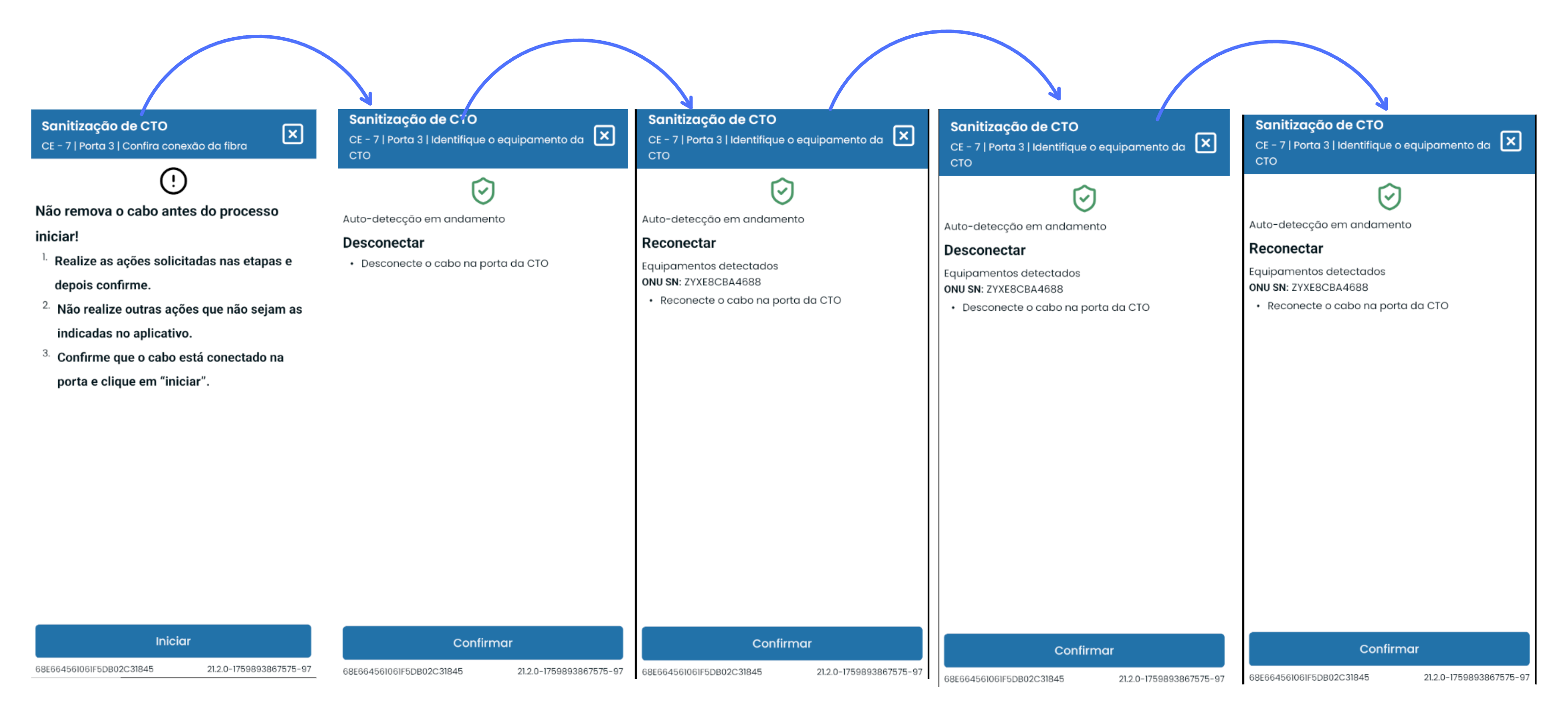
Process performed by the field technician to identify the equipment occupying the port.
When selecting this option, the technician is directed to an instruction screen providing detailed steps on what actions to perform at the right time.
After reading and clicking START, the next screens will clearly indicate the actions to take — such as disconnecting or reconnecting the fiber.
Once the action is complete, the technician must click CONFIRM to proceed.
¶ Timeout Exceeded
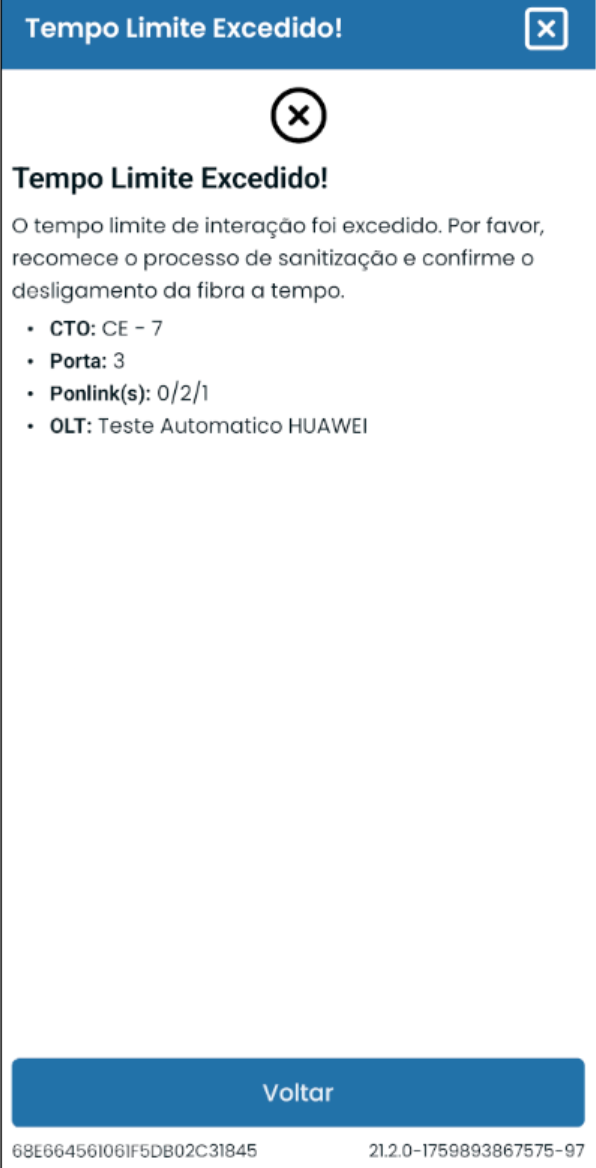
If the technician takes too long to perform a disconnect/reconnect action and click Confirm, a message will appear asking to restart the process.
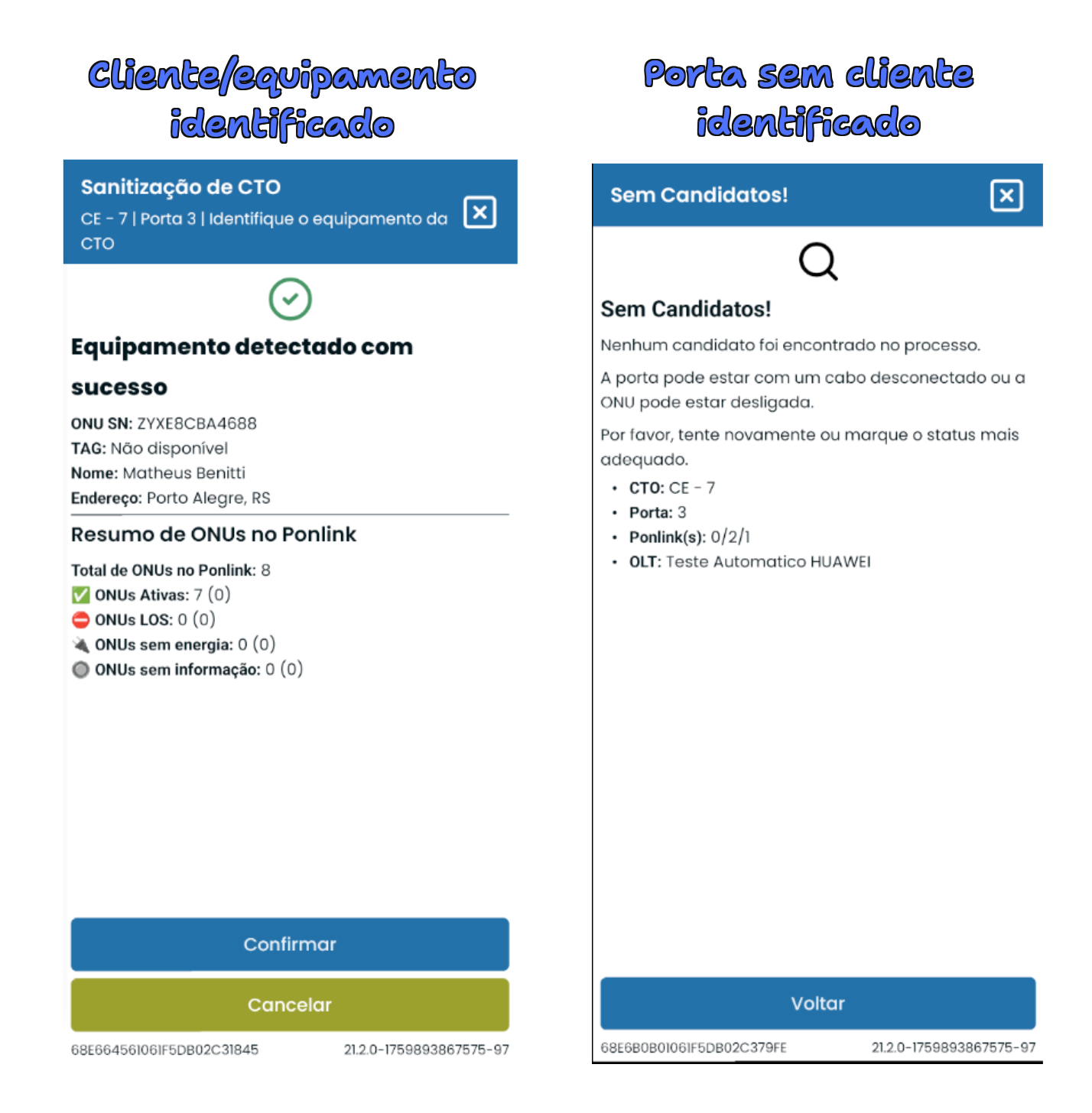
¶ Screen With Candidates and Without Candidates
When a client or equipment is identified during the auto-detection process, a screen showing the detected information will appear.
By clicking CONFIRM, the port will automatically be filled with the data in the INT6 portal and mapping system.
If desired, the technician may click CANCEL to choose another marking or repeat the process.
If no client or equipment is detected, the second screen — No Candidates — will be displayed.
In this case, after clicking BACK, the technician must select an action for the port, marking it as available, blocked, damaged, reserved, or unknown.
¶ Manual Linking / Port Reservation
To manually link or reserve a port, choose the MANUAL LINKING option.
On the second screen, enter the client’s INT6 ID and the ONU Serial Number (SN).
By clicking Confirm, a third screen with the client’s information will appear.
To confirm the link, simply click the confirmation button.
To mark it as a reservation, click Mark as reservation.