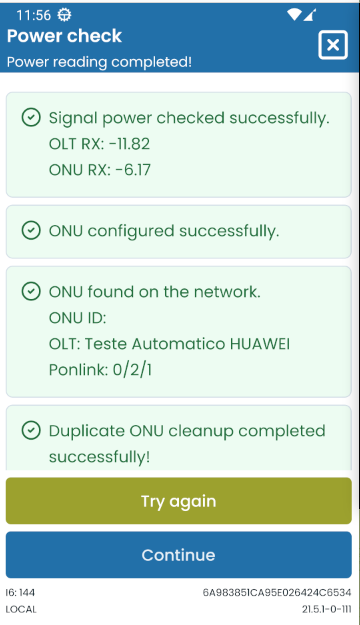
¶ ONU Only Provision
This flow is a subset of the New Installation flow, focused only on the PON configuration part.
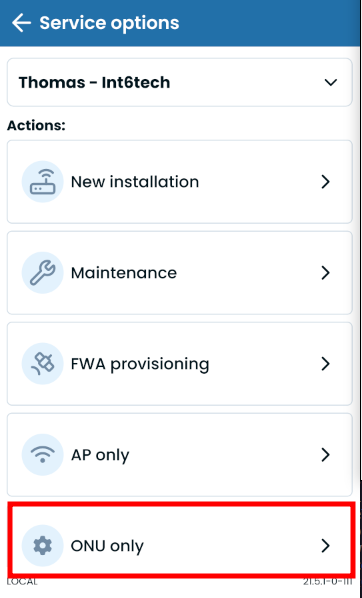
In the next sections we will be showing each step as well as its function in the installation. Optional and occasional steps will be marked with a "*".
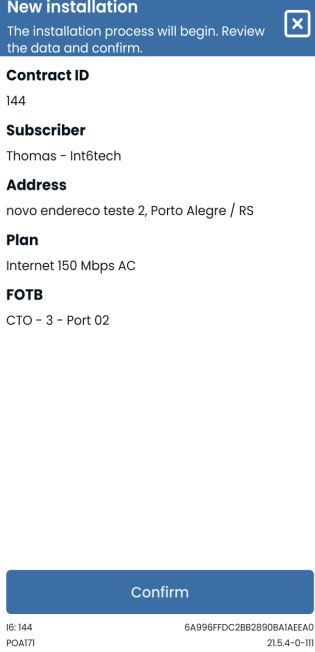
¶ Confirm Client Data
Just a client info summary to double check if the right client is being provisioned.
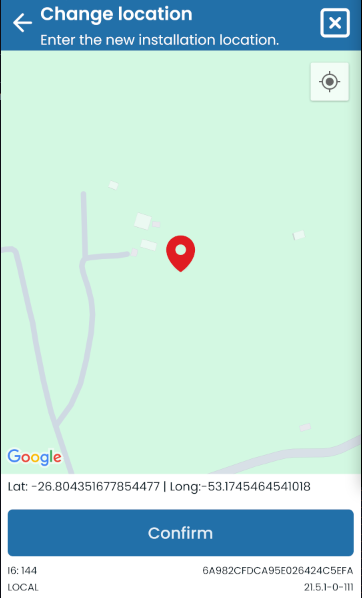
¶ Change Location
Lets the user set the latlong coordinates where the installation is happening. This is also used to search for nearby FOTBs in the next steps
¶ FOTB Selection*
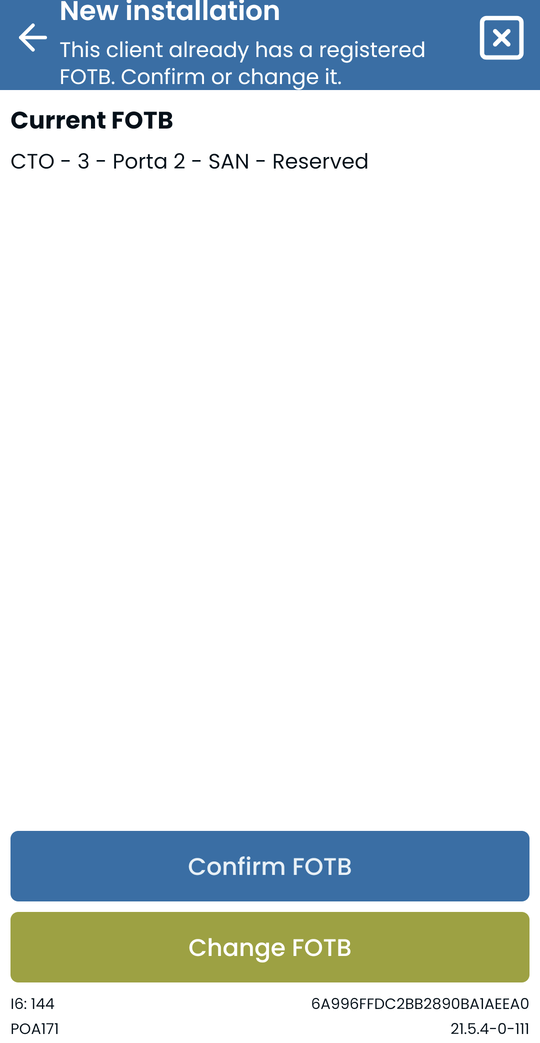
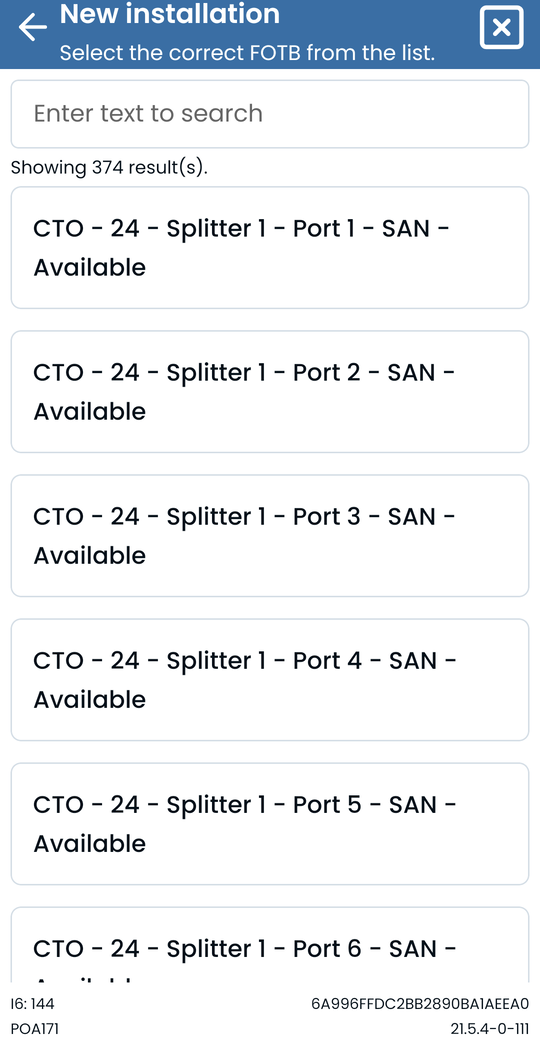
A series of optional steps that allow the user to make a quick sanitization of the FOTB port during the installation. The FOTB search type depends on the portal's COLLECTS_CTO_LAYOUT setting value, and to enable the FOTB Selection as a whole the value true must be setted on the COLLECTS_CTO_INFO setting. It's also possible to skip this selection enabling the bypass on the client's screen, or setting the ENABLE_CTO_SKIP_BUTTON setting to true.
¶ Confirm FOTB
¶ Choose FOTB Port
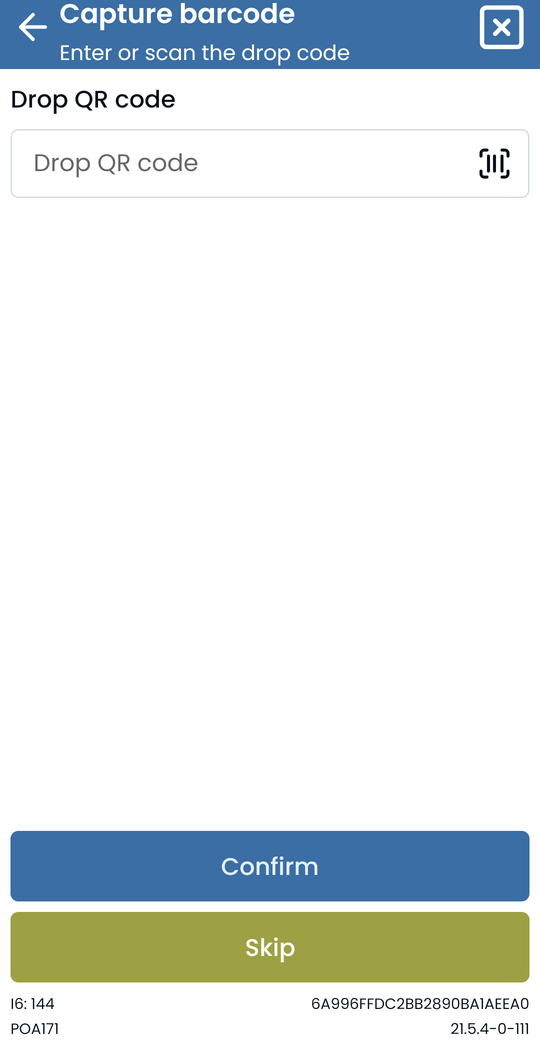
¶ Register Drop QR Code*
This step is optional inside the FOTB Selection itself, and needs to be enabled via smart setting
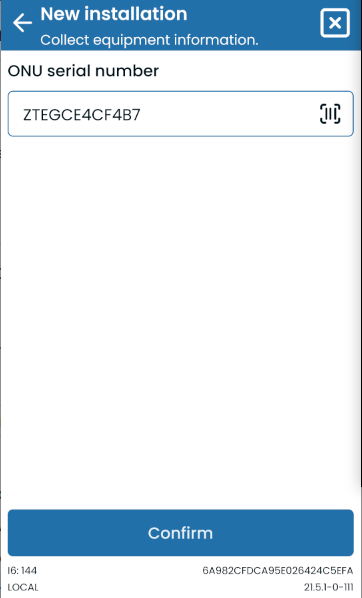
¶ Equipment Codes Collection
Collects the ONU Serial Number and, optionally, the MAC Address (the later has to be enabled via APP_ENABLE_MAC_VALIDATION). It's also possible to collect the codes via a Barcode / QR Code scanner next to the input.
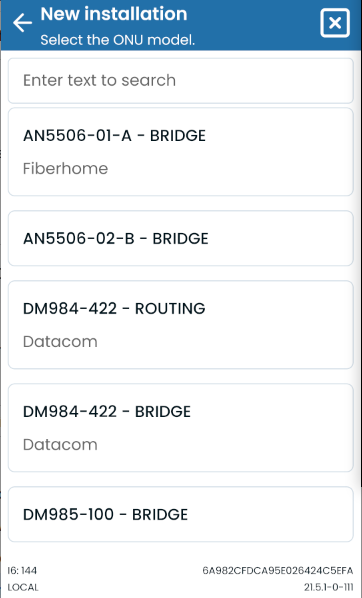
¶ Equipment Model Selection
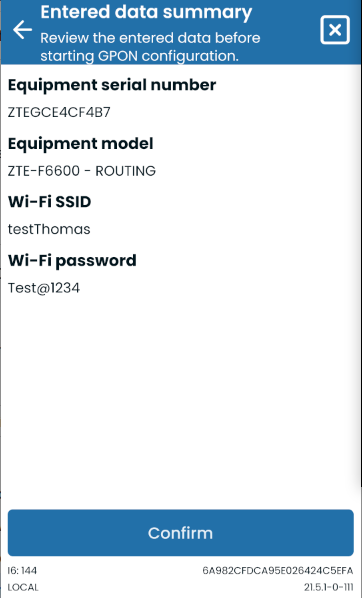
¶ Provision Summary
Screen used to verify and confirm the accuracy of all data recorded throughout the flow
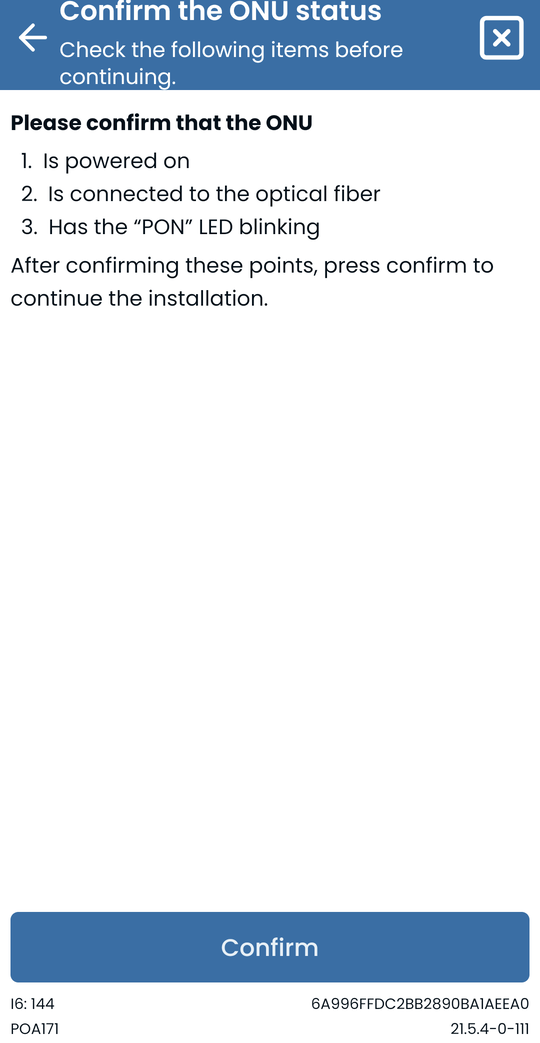
¶ Confirm ONU Status
Step used only to confirm if the ONU is correctly conected and powered before the GPON Provision
¶ GPON Provision
Another series of steps, shown as logs on the same screen, that cleans the client data and register the equipment in the OLT via API calls. The sequence of actions are: Cleanup -> Discovery -> Provision Start -> Power Check. The ONU Power Check validation can also be skipped using the same bypass button mentioned before.