¶ Massive Events - Filters
Filters help narrow down the Massive Events displayed on the dashboard, making it easier to locate events associated with a specific period, event classification, OLT, location, or event identifier.
Filters can be used individually or combined. After selecting the desired criteria, click Search to update the event list.
Leaving a filter empty keeps that criterion unrestricted, allowing the search to include all available values for that field.
The available filters provide different ways to locate and analyze Massive Events according to operational needs.
| Filter | Purpose |
|---|---|
| Date | Limits the results to events within a selected date range. |
| Category / Type | Filters events according to their Massive Event classification. |
| OLT | Displays events associated with a specific OLT. |
| Analytics Event ID | Locates a specific event using its unique Analytics identifier. |
| State | Limits the results to events associated with a specific state. |
| City | Limits the results to events associated with a specific city. |
| ERP ID | Filters events using the ERP identifier associated with the event. |
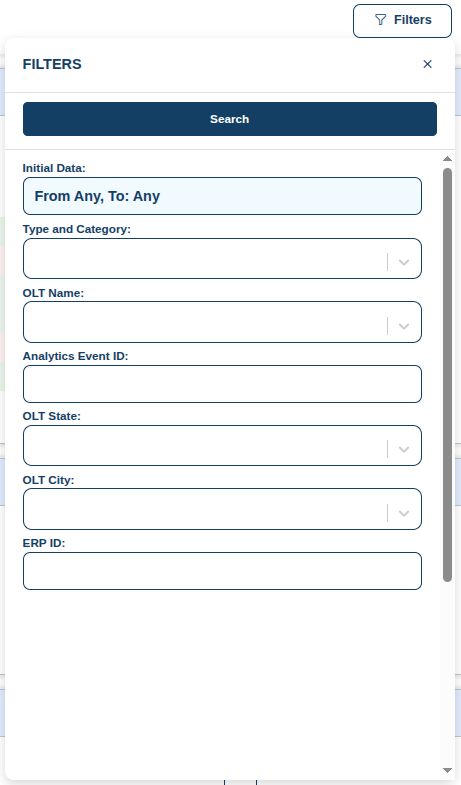
The Date filter allows events to be searched within a specific time period by defining a start date and an end date.
If no date range is selected, the filter remains unrestricted and events are not limited by this criterion.
The Category / Type filter allows events to be selected according to their classification.
This is useful when the analysis should focus on a specific condition, such as FTTH connectivity events, ONU VIP events, infrastructure failures, optical signal degradation, OLT connectivity, or service availability.
The OLT filter restricts the results to Massive Events associated with a specific OLT.
This filter is useful when investigating events affecting a known network element or when checking the event history of a particular OLT.
The Analytics Event ID is the unique identifier assigned to a Massive Event by the Analytics platform.
When the identifier is known, it can be used to quickly locate a specific event without applying additional filters.
The event identifier is also useful when sharing a Massive Event with another user. A direct event URL can be shared so that the recipient can access the same event reference without having to reproduce the original search criteria.
The State and City filters allow events to be narrowed down geographically.
They can be used to focus the dashboard on a specific service area and are especially useful when investigating regional incidents or comparing events across different locations.
The ERP ID filter allows Massive Events to be searched using the ERP identifier associated with the event.
This filter is useful when the ERP ID is already known and the operator wants to quickly narrow down the event list to records associated with that identifier.
Multiple filters can be applied at the same time to progressively narrow down the results.
For example, an operator can select a date range, a specific event category, and a city to display only events that match all of those criteria.
Combining filters can be especially useful when investigating a known incident, reviewing events within a specific service area, or reducing a large event list to a more relevant set of results.