¶ 🔧 Firmware Update via ACS
The Update Firmware feature is available under the ACS Diagnostics tab and allows a previously uploaded firmware file to be remotely applied through the portal.
This functionality is used to update the internal software of ONUs/ONTs, ensuring compatibility, fixing issues, and deploying new versions provided by the manufacturer.
¶ 🧭 Feature Location
Under the ACS Diagnostics tab, locate the Update Firmware button, as shown in the image below.
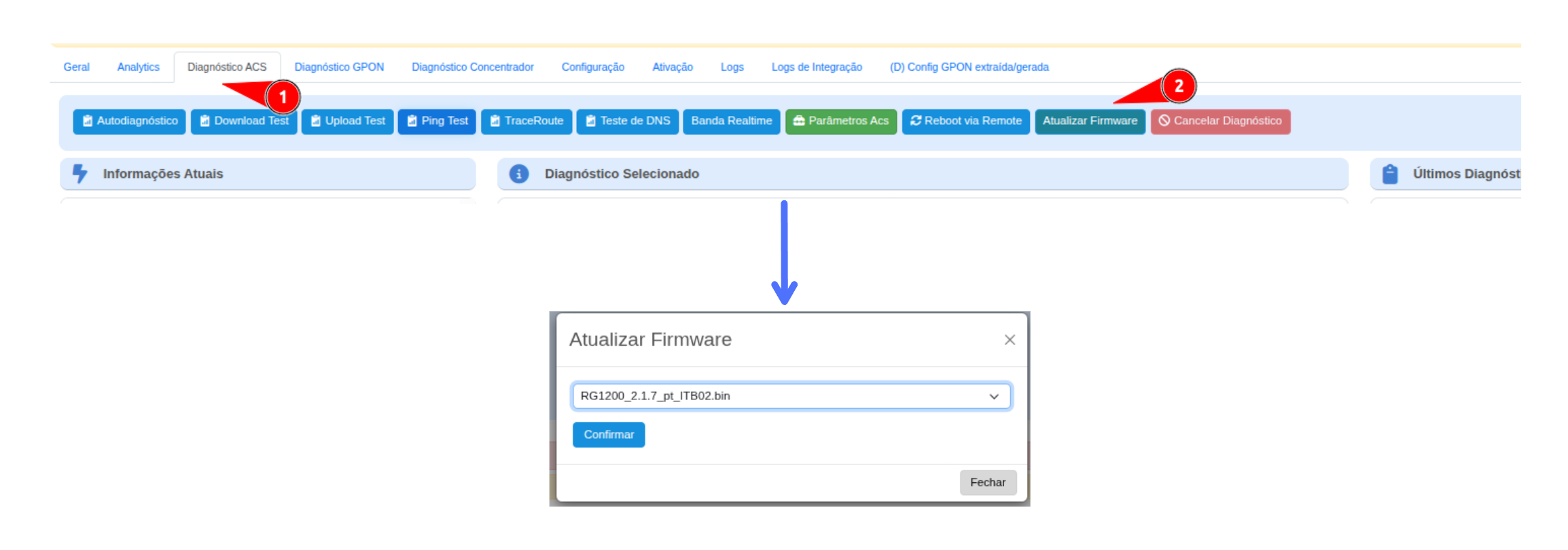
1️⃣ Click “Update Firmware”
This opens the file selection window (popup) to start the update process.
2️⃣ Choose the desired file
The field will display a drop-down list containing all firmware files previously uploaded to the portal (via the Update Files Index menu).
Select the file corresponding to the ONU model you want to update.
3️⃣ Confirm the operation
Click Confirm to send the update command to the ACS.
The system will transfer the file to the device and perform the update remotely.
¶ ⚙️ Technical Process Details
- The ACS uses the TR-069 / TR-369 protocol to send the update command.
- The device must be online and actively communicating with the ACS server.
- After completion, the ONU automatically restarts to apply the new firmware.
¶ ⚠️ Best Practices
- Make sure to select the file compatible with the exact ONU model.
- Verify that the device has a stable optical signal before starting the update.
- Avoid performing multiple simultaneous updates on a large number of ONUs — updates should ideally be performed in a controlled manner.
- After completion, confirm that the firmware was applied correctly by checking the ACS Parameters → Software Version field.
¶ 📘 Summary
The Firmware Update module integrates directly with the Update Files Index, allowing registered firmware images to be applied safely and remotely through the ACS.
It is an essential tool for keeping the device fleet up to date and standardized in the field.
🔐 Only users with ACS Administration permission can perform firmware updates.
⚙️ Bulk Update via Automation
In addition to the manual update process described above, the system also provides a bulk update feature, which allows firmware to be automatically applied to multiple devices based on defined criteria (model, manufacturer, or subscriber group).
This process is controlled by automated routines, ensuring the safe and gradual distribution of new firmware versions.
🔗 To learn more about this feature, click here (link to be added when the automation documentation becomes available).