¶ Diagnostic Campaign
The Diagnostic Campaign automation allows you to run download, upload, ping, and traceroute tests across multiple devices in bulk.
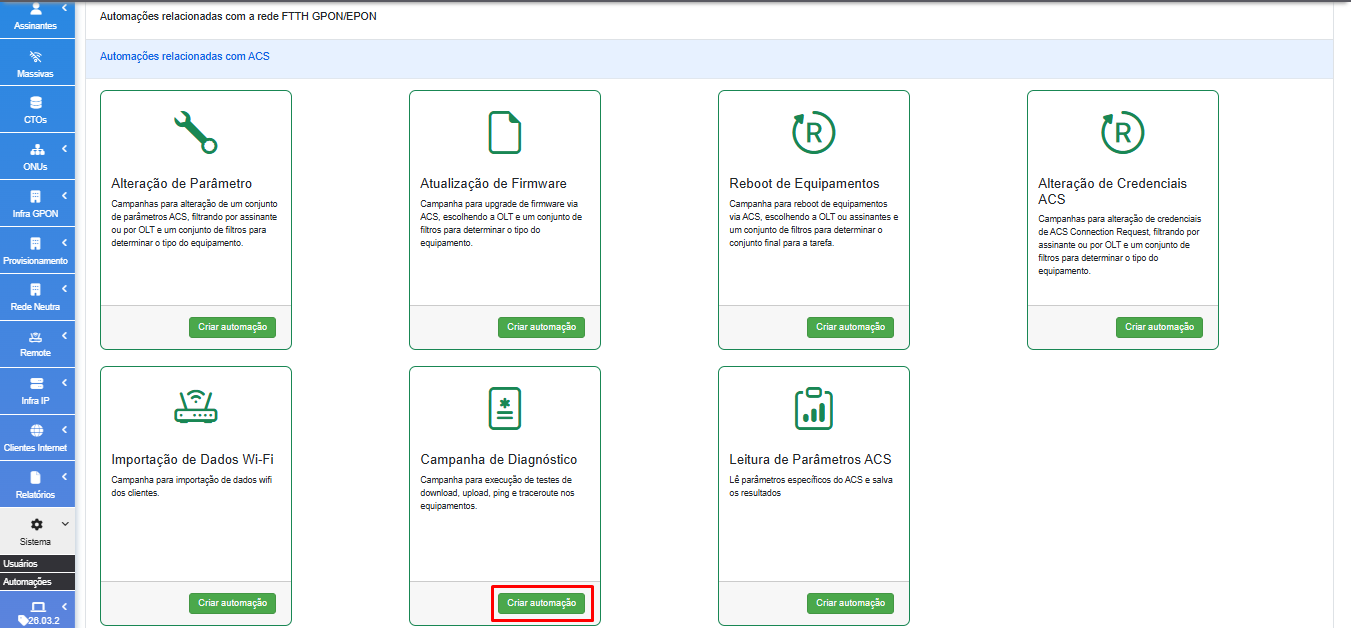
¶ 🧭 How to Access the Automation
To start creating the automation:
- Go to System → Automations
- Click Create
- Select the Automations related to ACS group
- Click Create Automation
¶ ⚙️ Automation Settings
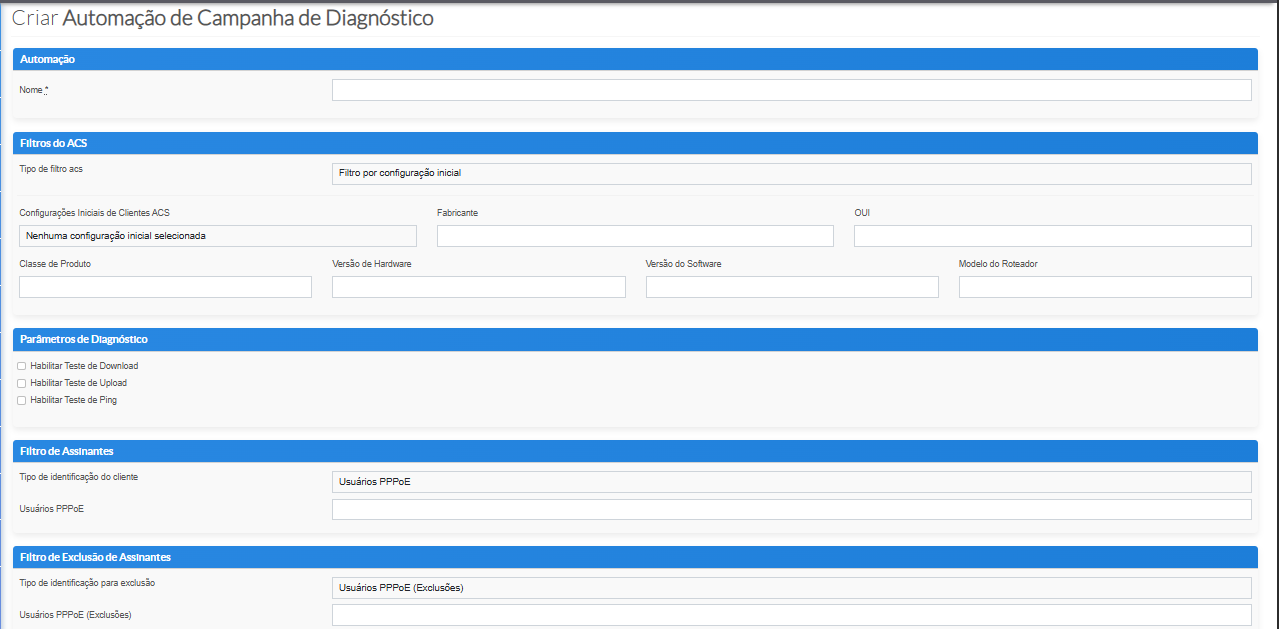
After clicking Create, the automation parameters screen will be displayed.
¶ 🏷️ Automation Name
- Enter a clear and identifiable name.
- If no name is provided, the system automatically assigns a default name.
¶ 🧪 ACS Filters
- These filters allow you to define which device model will participate in the automation.
¶ ⚙️ Diagnostic Parameters
- In this section, you can enable the tests that will be executed by the automation:
- Enable download test
- Enable upload test
- Enable ping test
¶ 🧪 Subscriber Filters
- This filter defines which subscribers will or will not participate in the automation.
- You can select PPPoE users, which are generally used for testing.
- You can also filter by
gpon_client, similarly to PPPoE users. - Another option is to filter by OLTs, allowing a broader group of subscribers to be selected and potentially running thousands of automation tasks overnight.
- Below this section, there is also an exclusion filter. Similar to the filters above, you can select specific customers that should not participate in the automation when using the OLT-based filter.
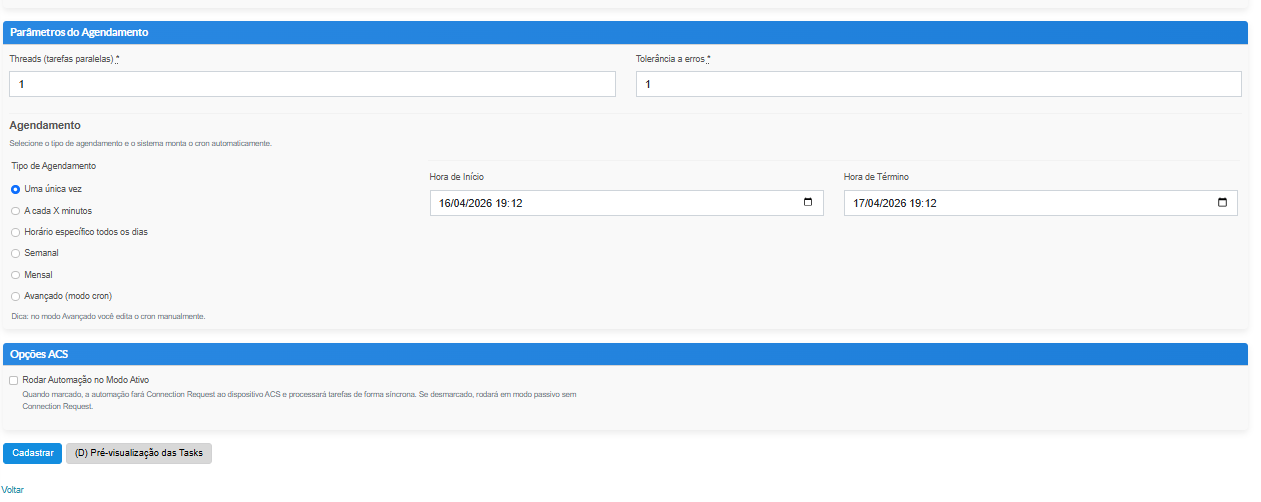
¶ 🧭 Scheduling Parameters
- At this stage, you can define the number of threads, which determines how many tasks can run in parallel. During the day, we generally recommend up to 10 threads without significant impact, while overnight up to 40 threads can usually be used without processing issues.
- Failure tolerance defines how many tasks may fail before the automation is automatically aborted. A value of 100 is commonly used as the default, but each partner can adjust this according to their environment.
- Several scheduling options are available, allowing each partner to choose the most appropriate approach, such as:
- Run once
- Every X minutes
- Weekly
- Monthly
- CRON
- Other recurring schedules
¶ 🏷️ ACS Options
- When Active Mode is enabled, the system uses the Connection Request mechanism. The ACS will force a connection with the CPE instead of waiting for the device's next Periodic Inform, which may take longer.
- After reviewing the settings, simply click Register or Back.