¶ 🗂️ Parameter Change
The parameter change automation allows you to edit any data that can be modified via TR-069. For example, you can change the DNS of a specific router model, modify DHCP settings, or even replace the ACS URL of a device.
¶ 🔐 Required permissions
To access and view automations, the user must have the Automations (Read) permission.
To create or edit automations, the Automations (Write) permission is also required.
¶ 🧭 How to access the automation
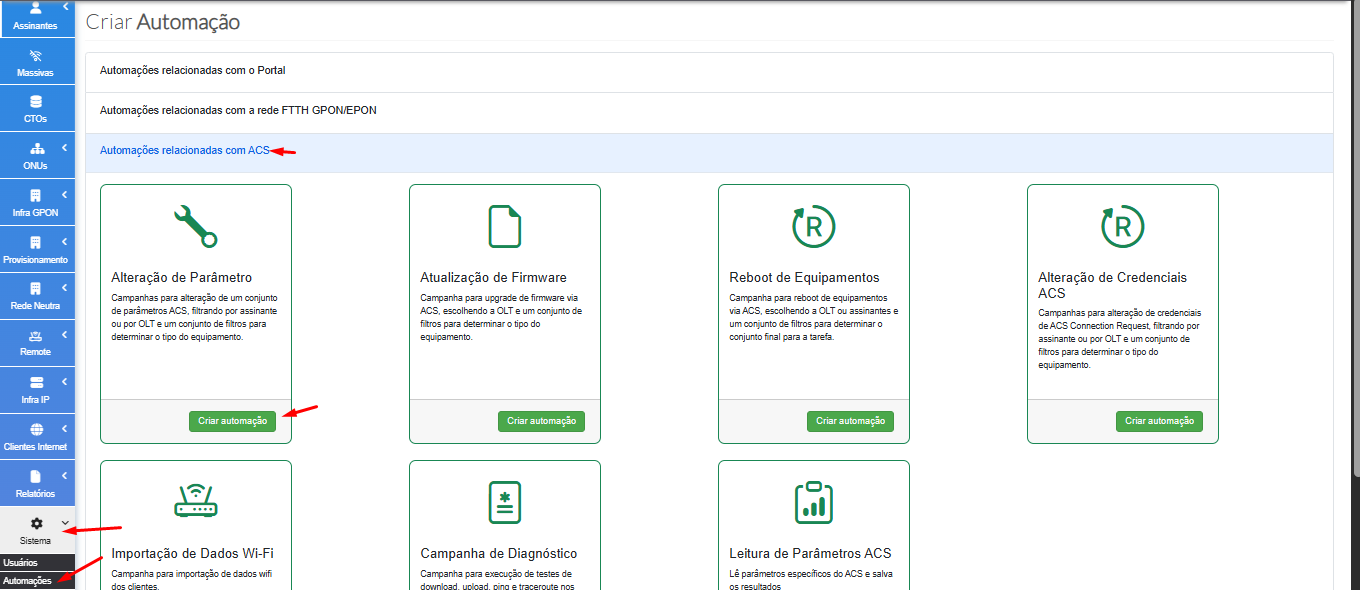
To start creating the automation:
- Go to System → Automations
- Click Create
- Select the Automations related with ACS group
- Select Parameter Change
- Click Create Automation
¶ ⚙️ Automation Settings
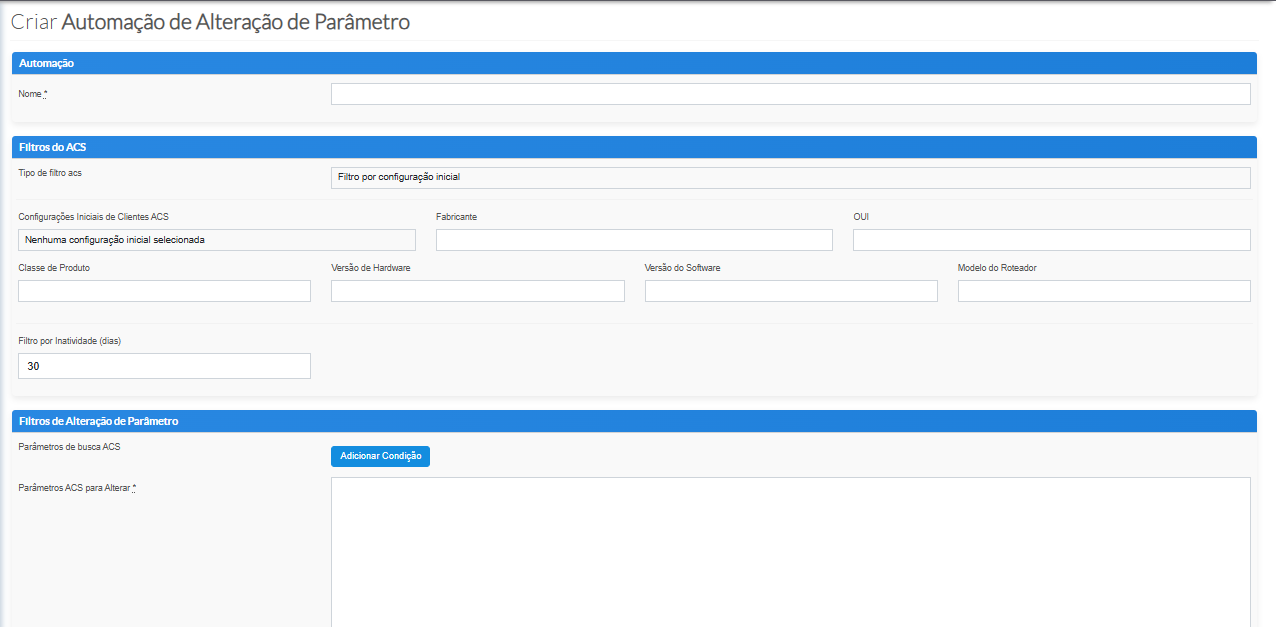
After clicking create, the automation parameter screen will be displayed.
¶ 🏷️ Automation name
- Enter a clear and identifiable name.
- If no name is provided, the system automatically assigns a default name.
¶ 🧪 ACS Filters
- These filters allow you to define which model will participate in the automation.
- You can also define a filter based on CPE inactivity.
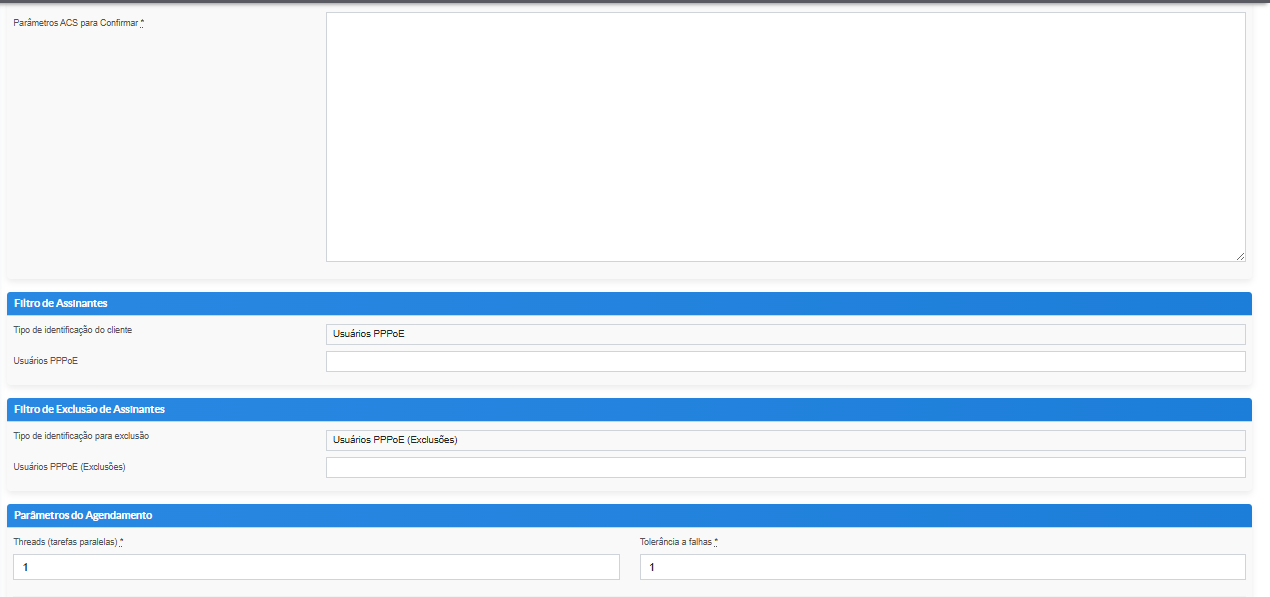
¶ 🧪 Parameter change filters
In this section, you can define a condition to determine which devices will participate in the change.
For example, during an ACS migration, you can select only the devices that still have the old URL configured.
You can also use a TAG to identify CPEs that have already gone through the automation. This is especially useful when the automation needs to run more than once, preventing devices that have already been updated from being processed again.
Example:
Tag_host = true
In the Parâmetros ACS para Alterar field, enter the parameter path in the TR-069 tree and the new value.
Example:
InternetGatewayDevice.LANDevice.1.WLANConfiguration.1.SSID = 12345678
You can also include, on another line:
Tag_host = true
In the field below, enter the parameter that will be used to confirm whether the change was successfully applied.
In situations such as a migration to another ACS, this validation may not be possible because the device will begin communicating with another server. In that case, the field can be left blank.
For changes to other parameters, the same parameter configured for the change should also be entered in the validation field, allowing the automation to confirm whether the new value was actually applied.
¶ 🧪 Subscriber filters
This filter defines which subscribers will participate in the automation.
Devices can be selected by:
- PPPoE, generally used for testing;
- PON Client List;
- OLTs, used for broader client selection and allowing thousands of changes to be executed during an automation window.
There is also an exclusion filter. This means that even when using a broad selection method, such as OLTs, you can specify individual clients that should not participate in the automation.
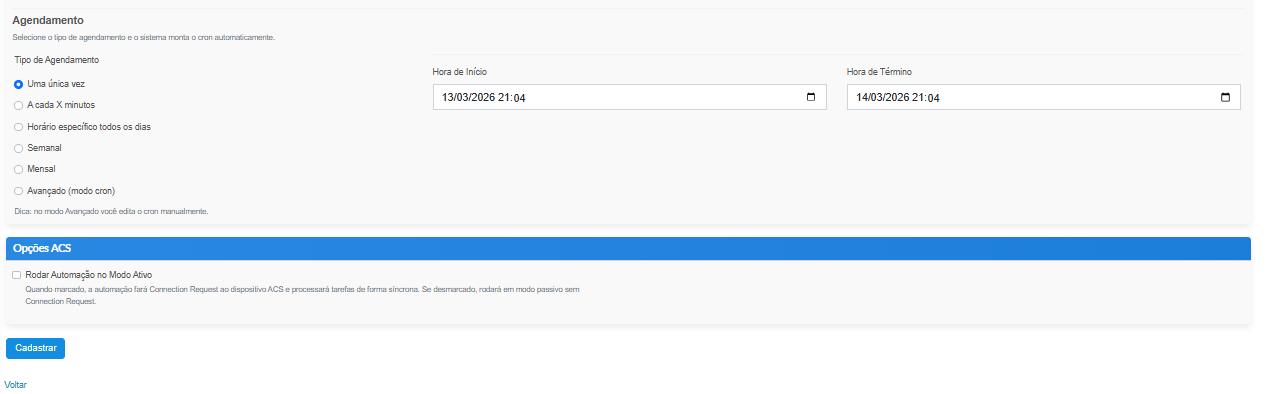
¶ 🧭 Scheduling Parameters
At this stage, you can define how and when the automation will be executed.
- Threads (Parallel Tasks): determines how many tasks can be executed simultaneously. In general, up to 10 are used during the day without impact, and up to 40 during the night, depending on the environment's capacity.
- Failure tolerance: determines how many tasks can fail before the automation is automatically stopped. A value of 100 is generally used as a default, but each partner can define this value according to their own environment.
- Scheduling type: several scheduling options are available, such as one-time execution, every X minutes, weekly, monthly, or CRON.
¶ 🕐 CRON scheduling example
The expression:
0 1 * * *
means that the automation will start every day at 01:00 AM.
Where:
0→ minute;1→ hour, corresponding to 01:00 AM;* * *→ any day of the month, any month, and any day of the week.
In the example used, the automation was configured with a duration of 6 hours.
¶ 🏷️ ACS Options
- When Active mode is enabled, the automation uses
Connection Request. - This allows the ACS to force a connection with the CPE instead of waiting for the
Periodic Inform, which may take longer. - After completing the settings, simply click Cadastrar or Voltar.