¶ 👥 User Management — Profiles Guide
This document describes how the Profiles tab works, used for creating, viewing, and managing access profiles in the Int6 Portal.
Profiles define which modules, screens, and actions a group of users can access in the system.
¶ 📂 Overview — Profiles Tab
The Profiles tab displays a list of all profiles registered in the portal, allowing you to:
- View existing profiles
- Create new profiles
- Edit configured profiles
- Delete profiles (when permitted)
Each profile works as a reusable permission set, which can be applied to multiple users.
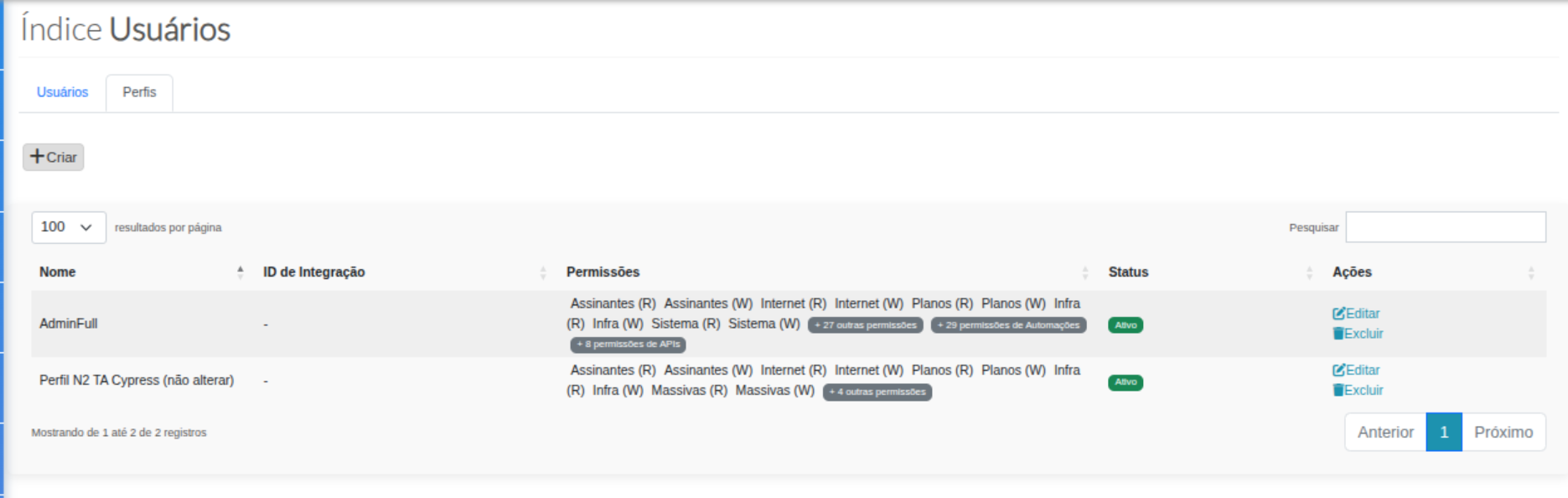
¶ 🔎 Information displayed in the list
| Field | Description |
|---|---|
| Profile Name | Profile identifier in the system |
| Integration ID | Identifier for automatic association via LDAP |
| Permissions | Summary of permissions linked to the profile |
| Status | Indicates whether the profile is active or inactive |
| Actions | Allows editing or deleting the profile |
¶ ➕ Creating a New Profile
To create a new profile, use the Create button in the Profiles tab.
This action opens the initial profile configuration screen.
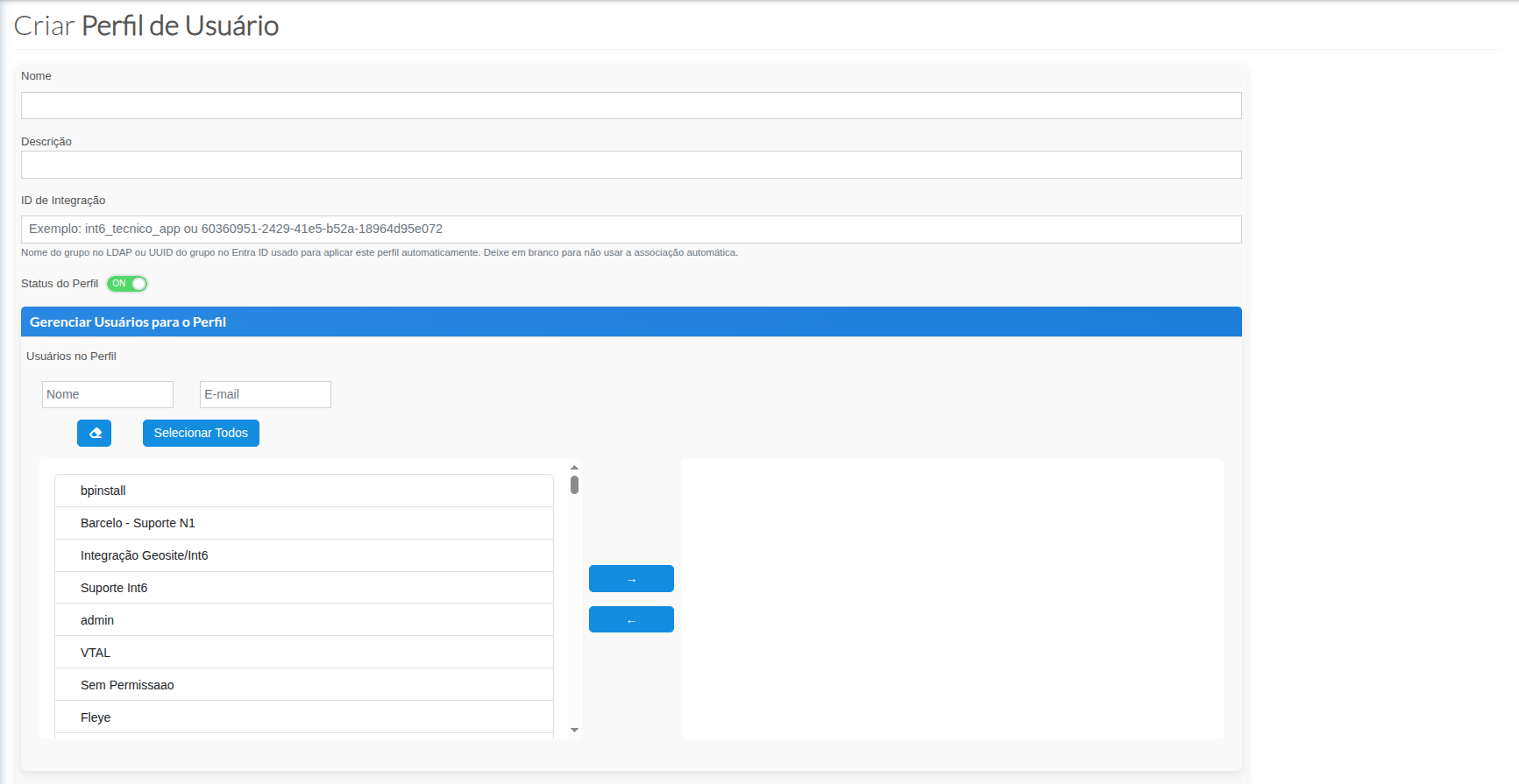
¶ 📝 Profile Fields
| Field | Description |
|---|---|
| Name | Profile name displayed in the portal |
| Description | Optional field to describe the profile purpose |
| Integration ID | LDAP group name or Entra ID group UUID |
| Profile Status | Defines whether the profile is active or inactive in the system |
ℹ️ Important
The Integration ID field allows automatic user association via external directories.
If not used, it may be left blank.
¶ 👤 Managing Profile Users
During profile creation or editing, it is possible to manually associate users.
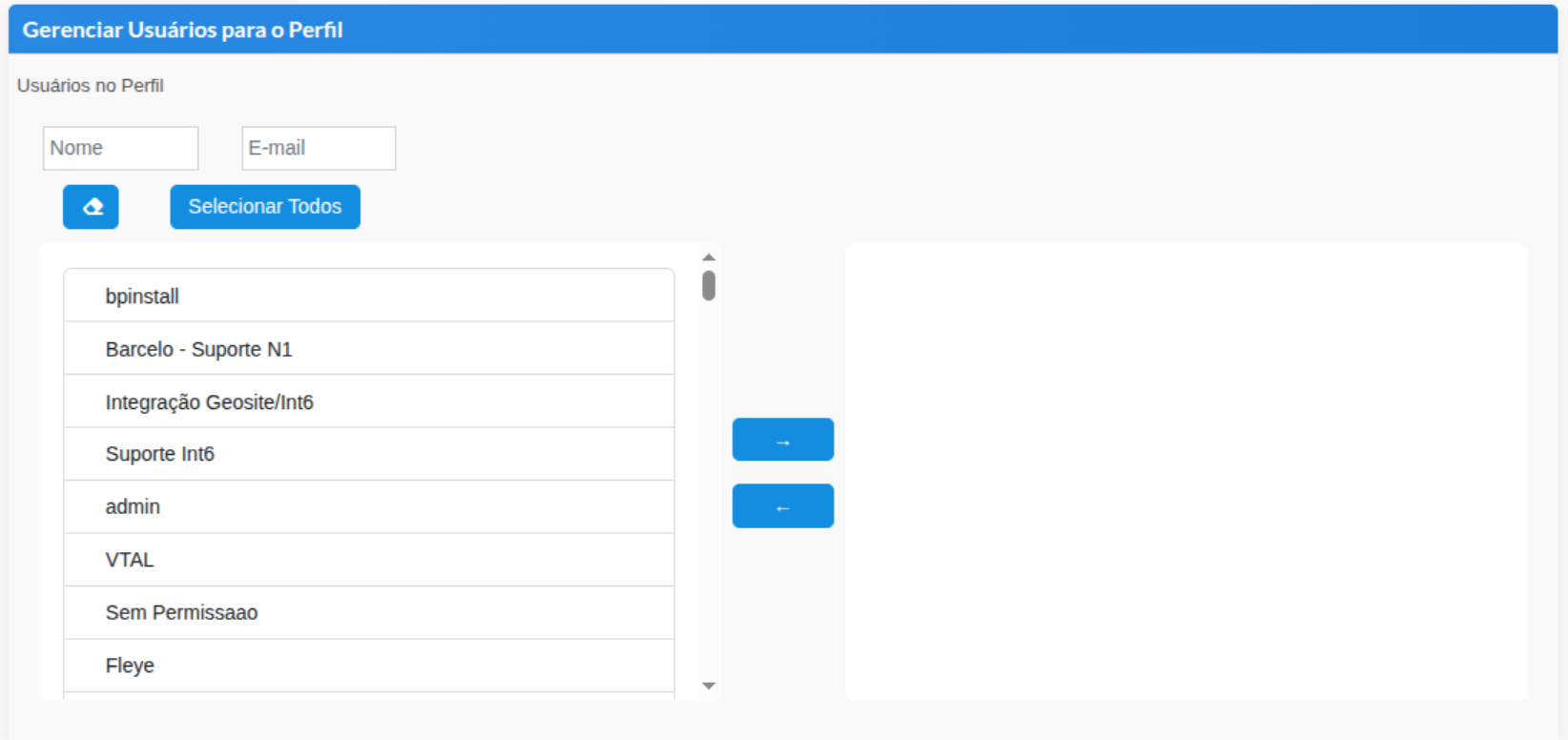
| Feature | Description |
|---|---|
| Search by Name/Email | Filters available users for association |
| Multiple selection | Allows associating multiple users to the same profile |
| Select all | Associates all listed users |
| Add / Remove | Controls which users inherit the profile permissions |
¶ 🔐 Permission Configuration
Profile permissions are organized by system module, enabling fine-grained access control.
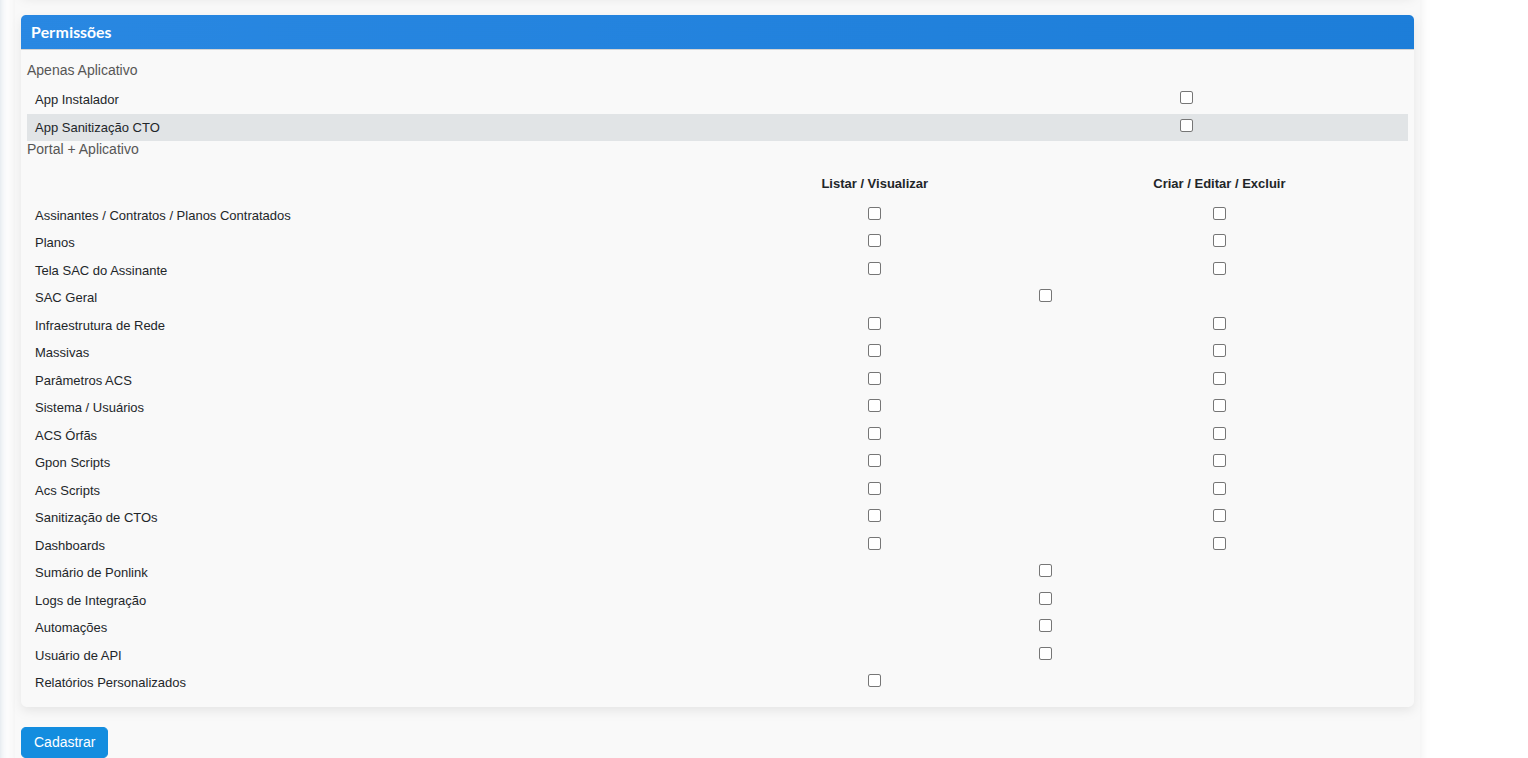
| Permission Type | Description |
|---|---|
| List / View | Allows information consultation only |
| Create / Edit / Delete | Allows full management and modifications |
| App Only | Permissions valid only for App usage |
| Portal + App | Permissions shared between Portal and App |
📘 Note
A detailed description of each module and permission will be provided in a specific document, keeping this guide focused on profile workflow.
¶ ✅ Profile Finalization
After completing the configuration, use the Register button to save the profile.
The profile will become immediately available, respecting the configured status.
¶ 📌 Best Practices
- Create profiles by operational role
- Avoid excessive permissions
- Use Integration ID whenever possible
- Prefer deactivating old profiles instead of deleting them