¶ 👥 Users Index
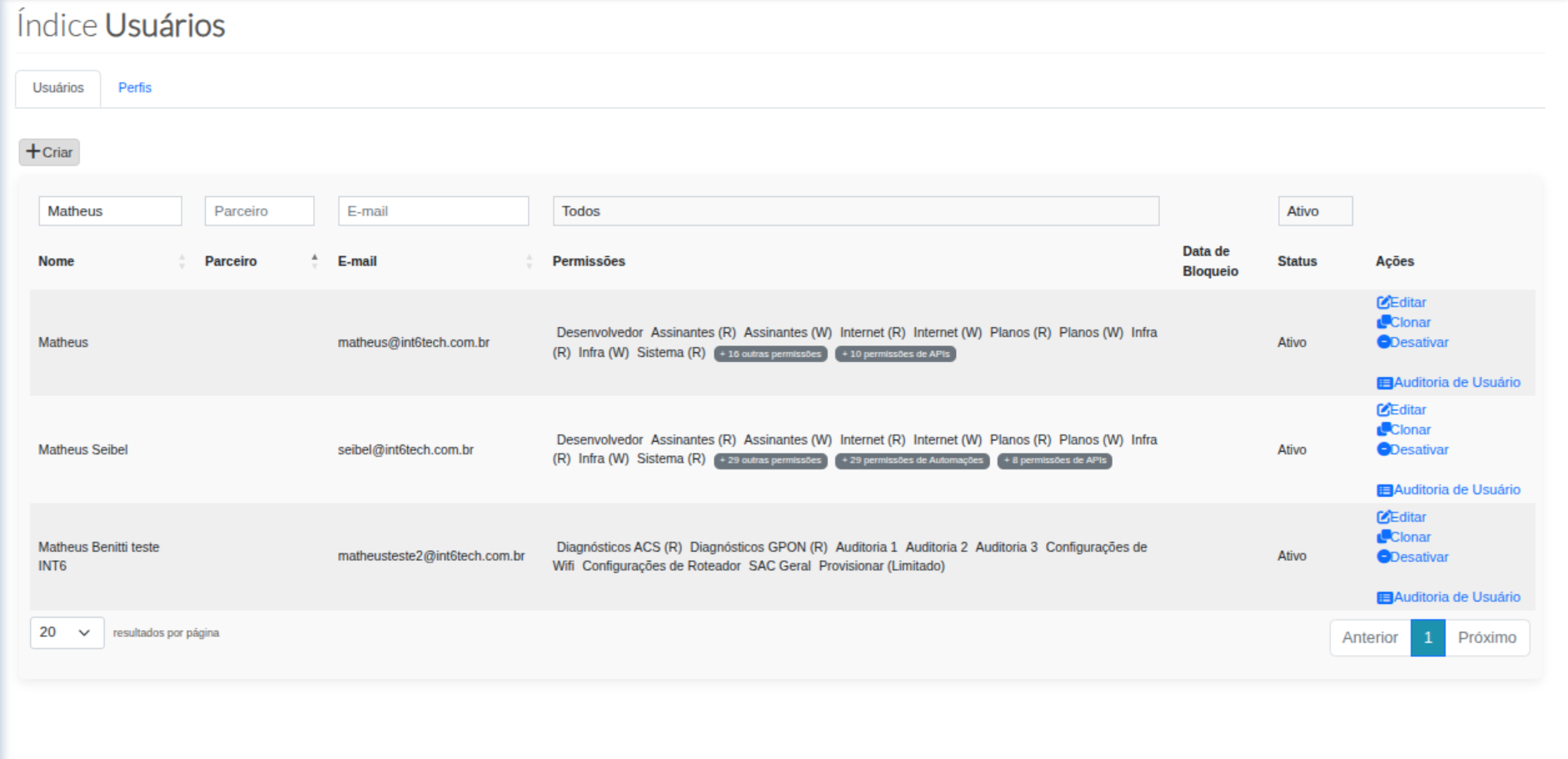
This screen represents the central user management panel of the Portal, serving as the starting point for creating, editing, cloning, deactivating, and auditing users, as well as allowing advanced search filters.
It is essential for access and permission control, ensuring each user has only the privileges required for their role.
¶ 🖥️ Screen Overview
¶ ➕ Create New User
In the upper left corner of the screen, the ➕ Create button is available.
This button allows registering a new user in the portal by defining:
- Name
- Partner (when applicable)
- Base profile
- Permission set
- Define password
💡 Proper user creation directly impacts system security and operational control.
¶ 📋 Users List
The central area of the screen displays the list of registered users, containing the following columns:
| Field | Description |
|---|---|
| Name | User's full name |
| Partner | Associated Neutral Network partner (when applicable) |
| Email used to log into the portal | |
| Permissions | Summary of permissions assigned to the user |
| Block Date | Date when the user was blocked, if applicable |
| Status | Current user status (Active / Inactive) |
| Actions | Available quick commands |
¶ ⚙️ Available Actions per User
In the Actions column, each user has the following commands:
¶ ✏️ Edit
Allows:
- Change registered data
- Adjust permissions
- Modify profiles and access
- Update status
¶ 📄 Clone
Used to:
- Quickly create a new user
- Copy all permissions from an existing user
- Reduce manual configuration errors
💡 Ideal for teams with similar roles (e.g., technicians, NOC, support).
¶ ⛔ Deactivate
Responsible for:
- Blocking user access to the system
- Keeping history and data preserved
- Preventing login without deleting the account
⚠️ Recommended for employee offboarding or temporarily suspended access.
¶ 🕵️ User Audit
Displays:
- History of actions performed by the user
- Data changes
- Sensitive operations executed
- System access and usage logs
🔎 Essential for traceability, security, and incident analysis.
¶ 🔎 Search Filters
At the top of the screen, dynamic filters are available to quickly locate users:
| Filter | Function |
|---|---|
| Name | Search users by name |
| Partner | Filter users linked to a partner |
| Direct search by user email | |
| Permissions | Filter users according to assigned permissions |
| Status | Display active or inactive users |
Filters can be combined to further refine results.
¶ 📌 Pagination and Results
At the bottom of the screen, you can:
- Define the number of results per page
- Navigate between pages using:
- Previous
- Next
This facilitates management in environments with a large volume of users.
¶ ✅ Best Practices
- Use Clone to maintain permission standards
- Avoid excessive permissions
- Periodically review active users
- Use Audit for incident analysis
- Prefer Deactivate instead of deleting users